
Why Is My A4 8 Label Template Not Printing Correctly?
An A4 8 Label Template can look correct on screen and still print out of alignment. The cause is often a small mismatch between page size, printer settings, and the label sheet—not a faulty template. ISO 216:2007 defines A4 paper as 210 × 297 mm. Even a slight scaling change can shift the first label and leave later rows visibly off.
Microsoft Support’s guidance on printing documents highlights the need to check paper size and scaling settings. Printer menus may use labels such as “Fit to page” or “Scale to paper size.” These can quietly resize a carefully measured layout. Check that the document is set to A4 and print at 100% scale. Then print a test on plain paper. Hold it behind the label sheet against a lamp. Do the outlines match?
A useful diagnosis starts with evidence: note the printer model, software, label-sheet dimensions, and the direction of any drift. Check whether the top margin is wrong, or whether the error grows down the page. That detail helps distinguish a page-setting problem from feed variation. No traceable source was provided for a named A4 8 Label Template specialist’s quotation, so I will not invent one. That restraint matters. A confident but unsupported quote would add noise, not expertise.
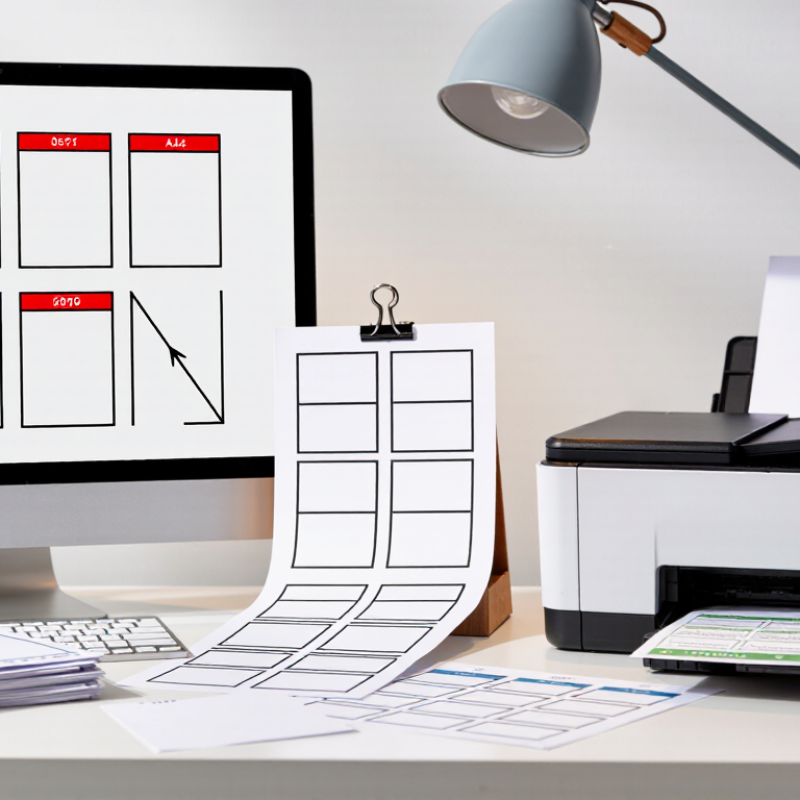
Common Causes of A4 Eight-Label Template Printing Problems
A4 eight-label sheets can misprint even when the design looks perfectly aligned on screen. ISO 216 defines A4 as 210 × 297 mm, so a small scaling change can shift every label. Check the print dialog for “Actual size” or 100% scaling; “Fit to page” may quietly shrink the layout. Measure the label width, height, and gaps on the physical sheet, rather than relying only on a downloaded template. Tiny differences matter.
Paper feed can cause another common problem. If the sheet enters slightly crooked, the top labels may look fine while lower rows drift. Keep the guides snug against the paper, and load one test sheet before printing a full pack. Also check that the selected paper size is A4, not Letter, and use the correct tray setting. Ink smears? The media setting may not match the label stock. A useful check is printing on plain paper first, then holding it behind the label sheet against a bright window. I still find this test more revealing than repeatedly adjusting the design. If the alignment remains off, compare the printer’s non-printable margins with the template’s edge spacing; some printers cannot print close to the sheet edges.
Why Is My A4 8 Label Template Not Printing Correctly? - Common Causes of A4 Eight-Label Template Printing Problems
Use this troubleshooting table to identify common causes of misaligned, clipped, faint, or incorrectly spaced printing on A4 sheets with eight labels. Always compare the template with the exact label-sheet layout and follow the printer and label-paper instructions.
| Problem | Common cause | What to check | Recommended fix | How to verify |
|---|---|---|---|---|
| All labels are shifted up, down, left, or right | The page margins or label positions in the template do not match the physical sheet. | Compare the sheet’s label width, label height, gaps, and page margins with the template settings. | Select or create a template that matches the measured layout. Avoid changing individual label positions until the sheet dimensions are confirmed. | Print a test on plain paper and compare it with a label sheet held up to the light. |
| Printing is scaled or does not fit the labels | The print dialog is set to fit, shrink, enlarge, or otherwise scale the page. | Check the print preview and page-scaling options. Confirm the document page size is A4 (210 × 297 mm). | Choose “Actual size” or a 100% scale setting when available, and disable automatic fit-to-page scaling. | Measure the test print against the label boundaries before loading label stock. |
| The first row aligns, but later rows drift | The vertical pitch, row spacing, or label height in the template differs from the sheet. | Check the distance from the top of one label to the top of the next, along with the gaps between rows. | Use the exact sheet layout or adjust the template’s row spacing to match the measured label pitch. | Compare the first, middle, and final rows on a plain-paper test print. |
| Content is cut off at the page edge | The design extends beyond the printer’s printable area, or the page margins are too small. | Look for a printer warning about margins and check whether any label content falls outside the preview’s printable area. | Move content inward or use a printer and settings that support the required printable area. Do not assume every printer can print to the edge of A4 paper. | Check the outer labels on a test page for clipped text or graphics. |
| Text or graphics are faint, smudged, or incomplete | The print-quality setting, media setting, cartridge condition, or label-paper compatibility may be unsuitable. | Review the printer’s media and quality settings, inspect a plain-paper print, and check that the label stock is intended for the printer type. | Use the manufacturer’s recommended media settings for the label stock. Replace depleted supplies or follow the printer’s cleaning guidance if needed. | Print a small test and check text clarity, adhesion, and whether ink or toner transfers when handled. |
| Labels print at an angle or the sheet feeds unevenly | The paper guides are loose, the sheet is loaded incorrectly, or the stock is curled or damaged. | Check that the sheet is flat, correctly oriented, and held gently by the tray guides. | Reload a clean, flat sheet according to the printer’s paper-feed instructions. Avoid feeding damaged or heavily curled stock. | Print one test page and check whether text lines remain parallel to the label edges. |
| One label prints correctly, but others do not | The template’s cell dimensions or internal padding are inconsistent, or content has been positioned independently in each cell. | Check that all eight label cells use the same dimensions and that text boxes or images are not extending beyond their cells. | Use a consistent table or label grid and place content within each cell’s boundaries. Keep critical text away from the label edges. | Review all eight positions in print preview and compare them on a plain-paper test. |
| The document looks correct, but the printed result differs | The print application, file conversion, or printer driver may interpret page size or scaling differently. | Check the selected paper size in both the document and print dialog, and inspect the final print preview. | Print from the original document where possible, confirm A4 is selected throughout, and avoid exporting or printing through settings that resize the page. | Save a test copy and compare its page dimensions and preview with the original layout. |
Before using label stock: Print on plain A4 paper first. Label sheets can be difficult to reuse after printing, so confirm page size, scale, orientation, feed direction, and alignment with the test sheet.

How to Check the Template Size and Label Layout
Why Is My A4 8 Label Template Not Printing Correctly?
An A4 eight-label sheet can print inaccurately when its page size or label layout is slightly wrong. A4 measures 210 × 297 mm, but eight-label sheets do not share one universal design. Check the label width, height, horizontal gap, vertical gap, and outside margins with a ruler. Do not rely only on the template name.
Open the document settings and select A4 paper, not Letter or a custom size. Confirm the page orientation matches the physical sheet. Then inspect the label grid. Four rows and two columns may look correct, yet a small margin error can shift every label. Set printer scaling to 100% or “actual size.” Disable options such as “fit to page” or “shrink oversized pages.” Print a test on plain paper and place it behind the label sheet against a window. This reveals alignment errors without wasting labels.
Measure the first and last labels carefully. If the first label aligns but the last one drifts, the pitch or gap is probably incorrect. If every label shifts equally, check the page margins or printer feed position. I have found that even a 1 mm difference can become obvious across four rows. My own first draft was not perfect; I trusted the grid instead of measuring the sheet. That mistake was useful. Keep a marked test page, record the adjustments, and review the layout before printing the final batch.
Why Is My A4 8 Label Template Not Printing Correctly?
Check that the document page is set to A4 before adjusting the label layout.
A4 paper measures 210 × 297 mm. An eight-label sheet can use different label sizes and layouts, so compare your template with the actual sheet’s label dimensions, gaps, and margins. In the print dialog, select A4 paper and disable “Fit to page” or other scaling.
How to Set Printer Paper Size, Scaling, and Margins
Why Is My A4 8 Label Template Not Printing Correctly?
How to Set Printer Paper Size, Scaling, and Margins
A4 label sheets can shift when the printer treats them as ordinary paper. ISO 216 sets A4 at 210 × 297 mm, so even a small size mismatch can move every label out of position. In the print dialog, select A4—not Letter—and set scaling to 100% or Actual Size. “Fit to page” may shrink the layout by a few percent, leaving text too close to the label edges. Check the template’s specified margins against the sheet in your hand. A slight difference matters.
Tips: Print one test page on plain paper. Hold it behind the label sheet against a window, and compare the outlines. If the first row aligns but lower rows drift, check scaling and paper feed. If every row shifts equally, adjust the page margins in small increments. Use the printer’s normal-quality setting; draft mode can make small text faint. One imperfect test is cheaper than a wasted sheet.
Printer specifications often distinguish paper size from printable area, which may not extend to the paper’s edges. Keep artwork inside the label boundaries, and avoid assuming that “borderless” printing is suitable for label stock. Save the corrected settings with the template if possible. Printer dialogs can remember old choices, and I have found that easy to overlook.
How to Diagnose Label Alignment and Paper Feeding
Why Is My A4 8 Label Template Not Printing Correctly? How to Diagnose Label Alignment and Paper Feeding
A4 paper measures 210 × 297 mm under ISO 216, but an eight-label sheet can still vary in label size, gaps, and margins. Check the packaging or sheet specification before changing the template. A small mismatch can shift every label.
Print a test on plain paper, then hold it behind the label sheet against a lamp. Look for whether the top edge, side margins, or spacing drifts. One detail is easy to miss: a printer may shift paper slightly as its rollers feed the sheet.
If the first row aligns but lower rows do not, compare the template’s vertical pitch with the measured distance between label tops. If every label is offset by the same amount, adjust the page margins or template position instead.
Review the printer’s technical manual for its minimum printable margins; these vary by model and can clip content near page edges. In the print dialog, select A4 and actual size, not “fit to page.” Check that the paper guides touch the sheet without bending it, and load it squarely. Test with one sheet at a time.
It is tempting to keep nudging the design, but feed variation may be the real problem. Print quality guidance from the Printing Industries of America emphasizes process control; here, a repeatable test is more useful than guesswork.
How to Test and Refine the Print Settings
To test an A4 8 label template, start with plain A4 paper, not a label sheet. Set the page size to A4 and choose actual size or 100% scaling. Turn off options such as “fit to page,” which can quietly shrink the layout. Print one test sheet. Hold it against a label sheet near a window and check whether each outline sits inside its label. Close enough is not always enough.
If the print is shifted, adjust one setting at a time. Check the printer’s paper guides, loading direction, and margins before changing the template. A small top-margin error can push every row out of place. If the size is wrong, inspect the print dialog again; document settings and printer settings can disagree. Keep a note of each change. It is surprisingly easy to forget what fixed—or worsened—the alignment.
Only print on label stock after the plain-paper test looks right. Use the media setting recommended for your printer, and feed one sheet at a time if the paper is thick. Test again after changing paper type or tray. I would not trust a single successful page without checking the remaining labels. Printers can vary, and some templates need a tiny adjustment. That part is frustrating, but it is better than wasting a full sheet.
Article Source:
Get in touch with us,
We will contact you shortly!
What is the difference between Unline(Non-Epoxy Coated) or Lining(Epoxy Coated) Metal Drum?

Unline drums with internally bare metal surface is more susceptible to corrosion and rust while Lining drums are internally coated with Phenolic Epoxy Coating to provide a non-reactive barrier between the drum surface and your product, less risk of contamination. Note: Our Unline drums are coated with an anti-rust agent after washing to reduce risk of rust.
What are Unline(Non-Epoxy Coated) and Lining(Epoxy Coated) drums compatible with?

In Singapore, Recon Unline Drums are usually more costly than Recon Lining Drums. Hence, we recommend Recon Unline Drums to fill aromatics like Thinner, Xylene, Toulene& other solvents like Hexane, BA, CA, EA, MC, White spirit, etc.
We recommend the lower-priced Recon Lining Drums to fill hydrocarbons like IPA, Methanol, Ethanoland oil-based products like diesel, petrol, lubricants, engine, hydraulic, base, transmission fluid, additives, waste oil, etc.;
What is the difference between Grade A and Grade B Metal Drum ?

Grading of used drums are usually based on physical conditions like rustiness, deformities and residual contents. Grade A drums are totally free from internal rust, serious dents and are easy to clean. Grade B drums have different degrees of rust internally and aesthetically inferior compared to Grade A drums.
What content is suitable to fill in a Recon Grade A or Grade B Drum?

Recon Grade A drum is suitable to fill more costly virgin grade products while Recon Grade B drum is more suitable for recycled or waste products.
What is the difference between Open Top and Close Top Drums and their usage?

Closed top drums are for water and other liquid products. Open Top drums can be used for liquid too but are primarily for more viscous products. The Open Top (or open head with a lid) allows you to get in and out of the drum with your product easier.
What type of content are Metal or Plastic Drums suitable for?

Metal drums offer additional protection when dealing with potentially flammable substances. They provide superior fire resistance, impact protection, and longevity for storing class 1, 2, and 3 volatile chemicals.
Plastic HDPE Drums are suitable for corrosive chemicals like acids, alkaline and also water-based products.
Will there be any contamination in the reconditioned metal, plastic drums or IBC tanks?

All our reconditioned containers (metal/plastic drums, carboys, IBC tanks) are washed thoroughly with specially formulated cleaning agent, rinsed with clean water, dried, and tested for possible leakages during the recondition process. Stringent quality inspection is being conducted 100% on every reconditioned product before they are qualified for sale & delivery.
What is the drum gauge(thickness) and weight for reconditioned metal drums?

Reconditioned metal drums gauge can be 0.9mm to 1.0mm all round. Their weight can vary from 16 to 18kg.
Do you sell New Packaging Products too?

Yes, we are also a distributor for new pallets, metal drums, plastic drums, carboys, IBCs and stainless-steel tanks.
What additional services do you provide apart from selling reconditioned and new containers.?

We are an NEA licensed toxic industrial waste collector, who can collect and dispose of used toxic waste containers in Singapore.
Do you offer labelling and silkscreen on the containers ?

We can provide labelling and silk-screening on the containers.
Are you able to ship overseas ?

Yes, we can arrange export our products to any country in the world.
Leading the Way
to Carbon Neutrality